
PolkaGate: How to Connect a Polkadot Vault Account Print
Modified on: Tue, 13 Jan, 2026 at 12:25 PM
This article remains available for reference but is no longer updated or maintained.
Please use the information at your own discretion and risk.
For more details, refer to the official annoucenment.
PolkaGate is a Polkadot wallet developed and maintained by PolkaGate Foundation. It is an open-source browser extension available for Mozilla Firefox and Chromium-based browsers, funded by the Kusama Treasury. PolkaGate is compatible with many DApps and tools in the ecosystem.
In this article, we'll show how to connect your Polkadot Vault (previously known as Parity Signer) account to PolkaGate.
ℹ️ GOOD TO KNOW

If you have any questions about PolkaGate, or run into any issues and require further assistance, feel free to ask our AI chatbot or contact us.

Alternatively, you can contact the PolkaGate team directly and receive specialised assistance from the team that developed the wallet. You can contact PolkaGate support on Element or at polkagate@outlook.com
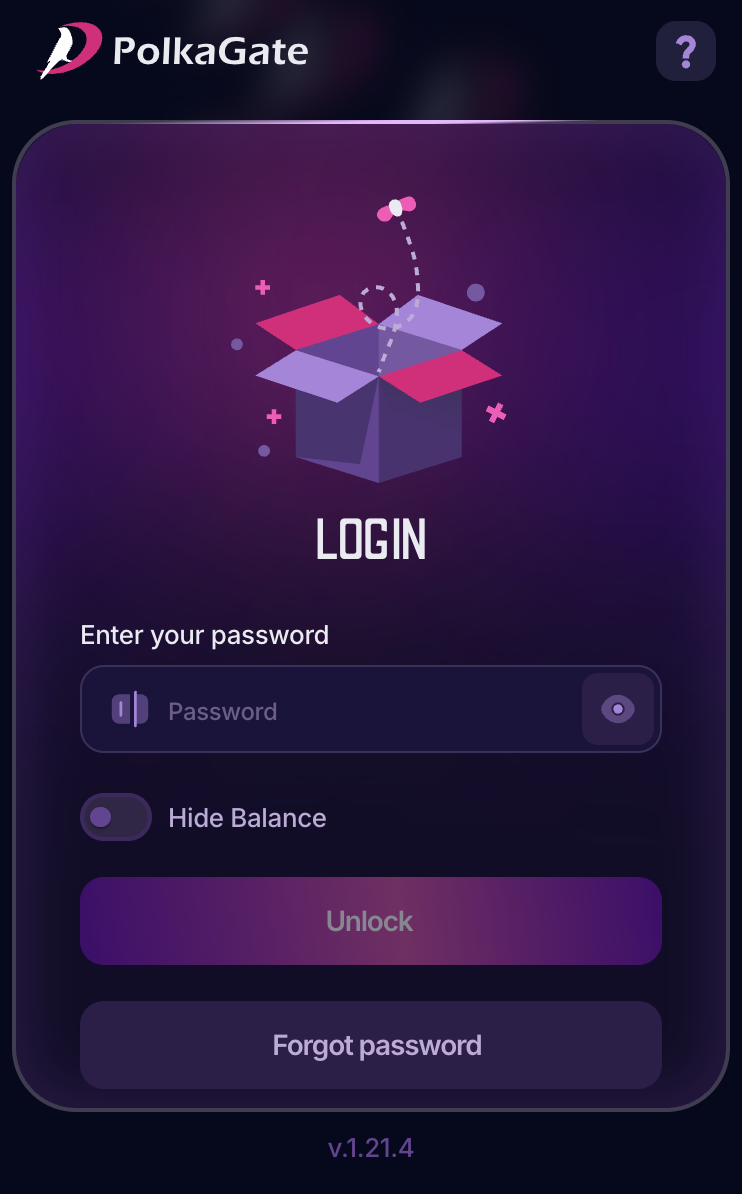
1. Click the PolkaGate icon next to your URL bar. If the wallet is locked, enter your login password to unlock it:
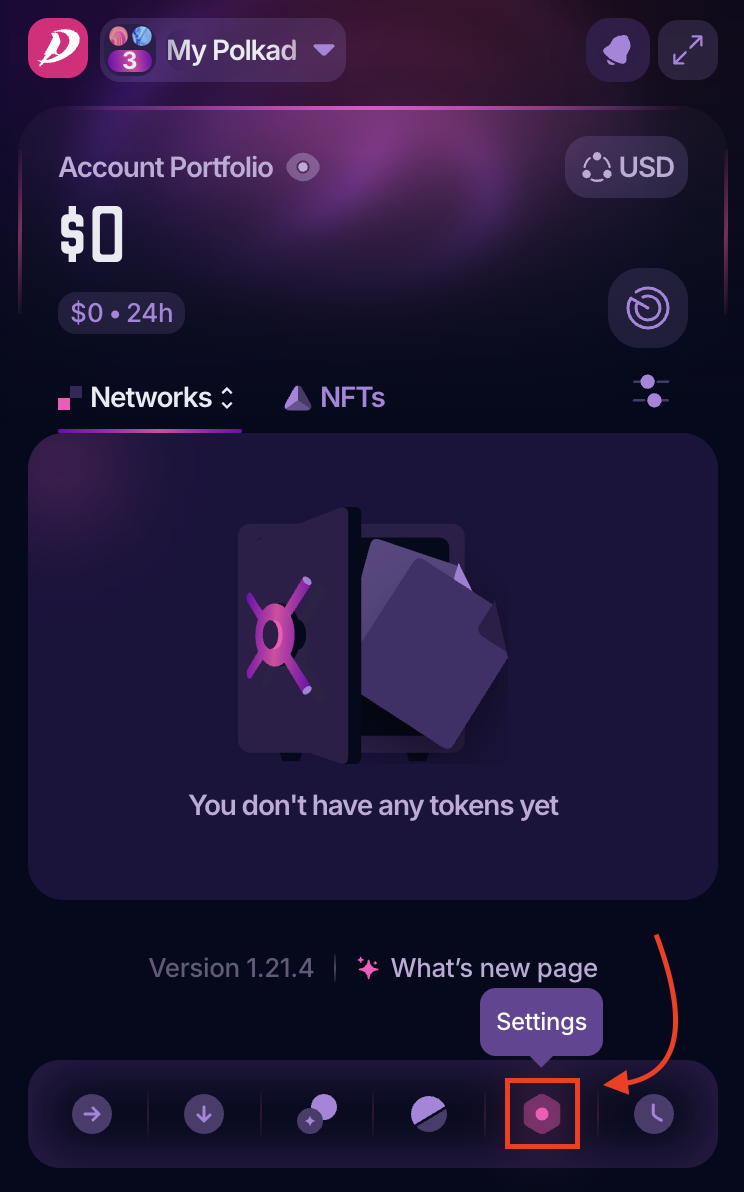
2. Open Settings by clicking the gear icon:
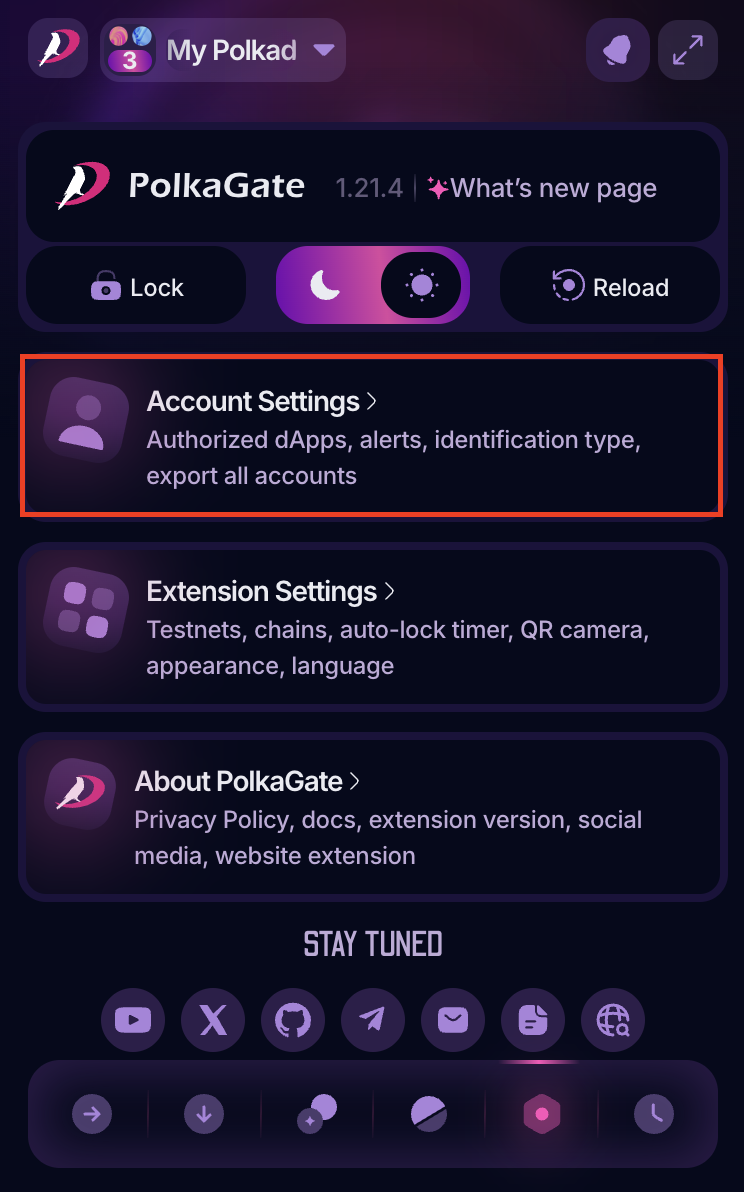
3. In the new panel, click "Account Settings":
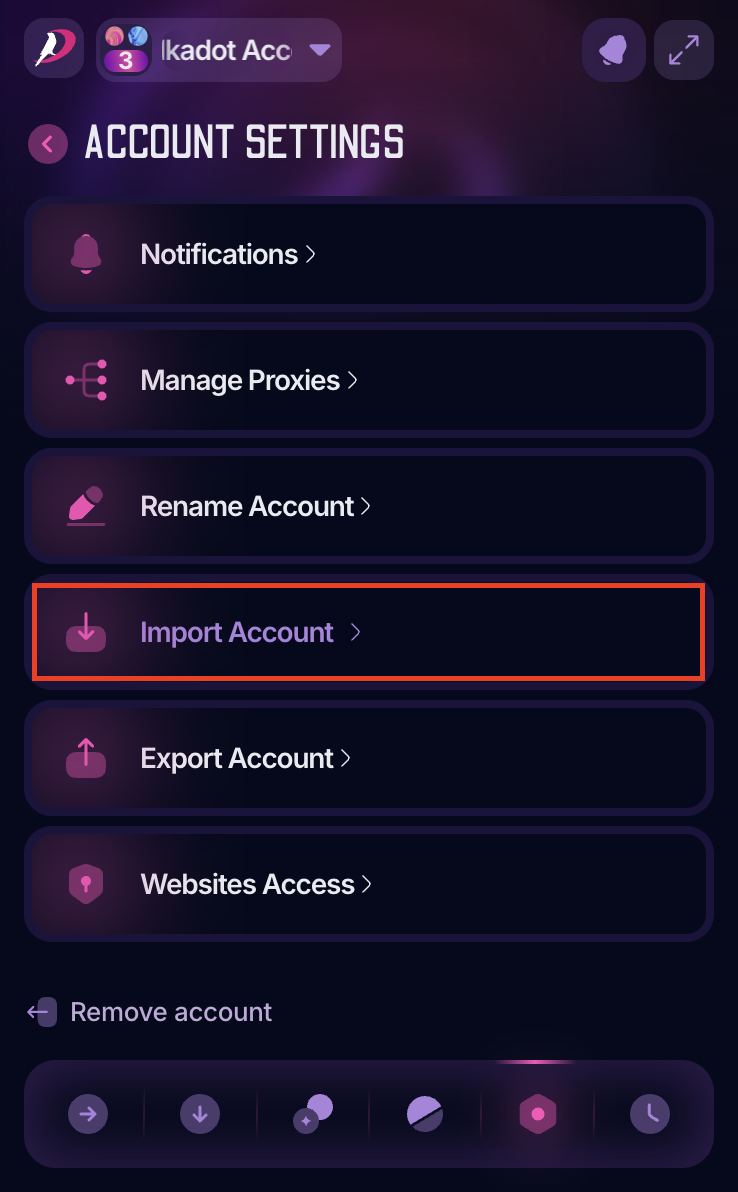
4. Now, select the "Import Account" option:
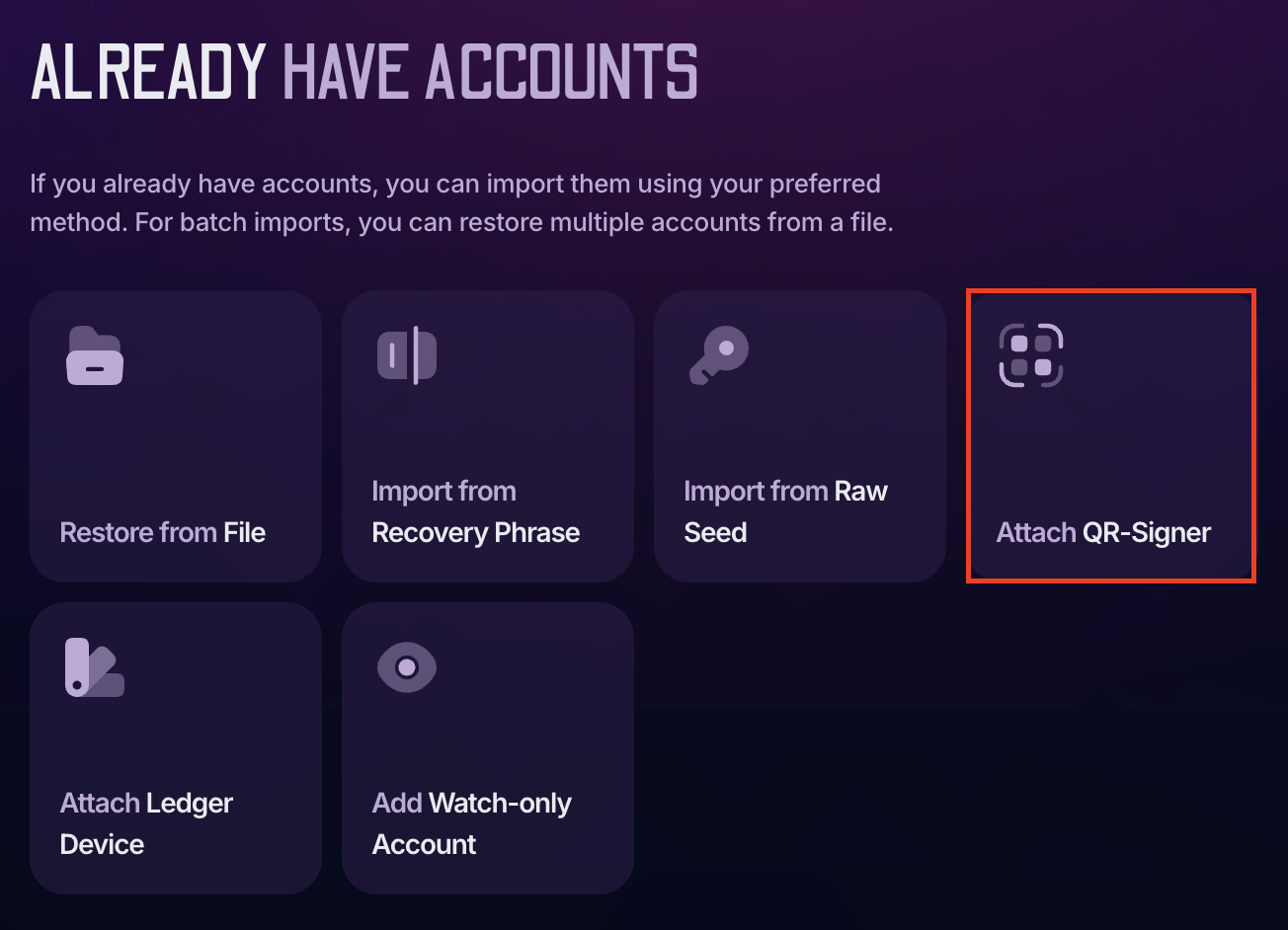
5. A new window will open in your browser. Click "Attach QR-Signer":
6. Now, open your Polkadot Vault app and choose the specific account you wish to add:
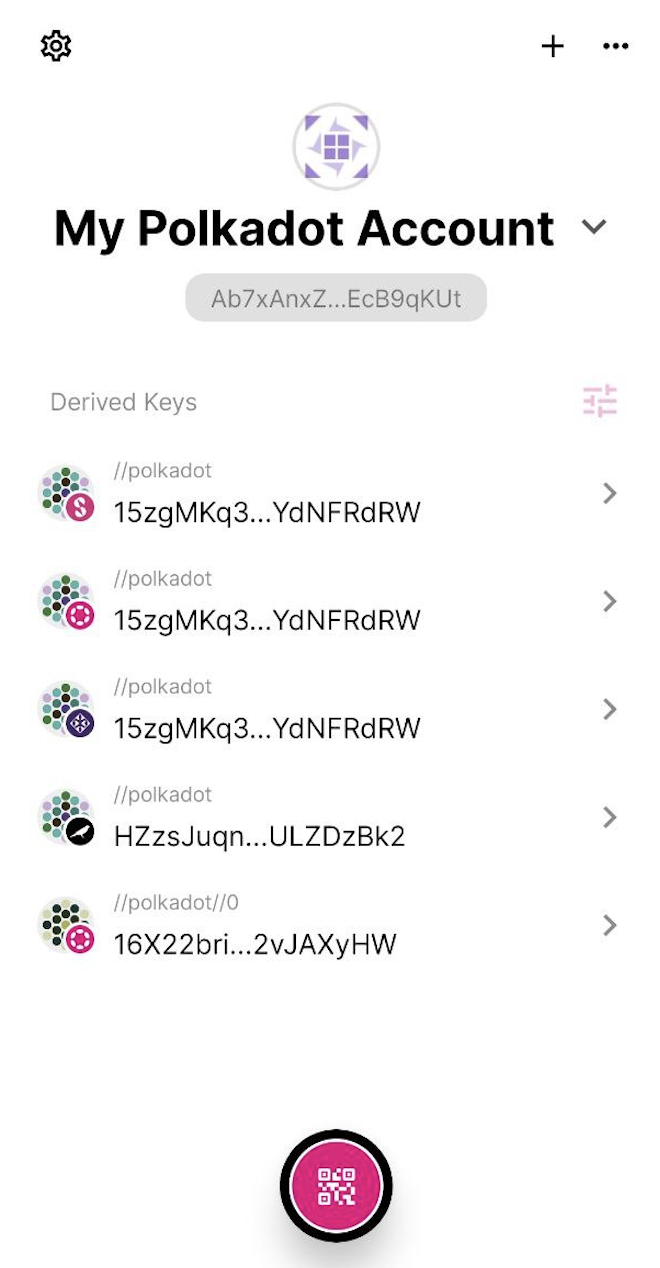
7. On the next screen in Polkadot Vault, choose the chain where you intend to use the account. This will display the account's address on that chain as a QR code.
8. Show the QR code to your camera to attach your Polkadot Vault account to PolkaGate. Name the account and click "Add Account":
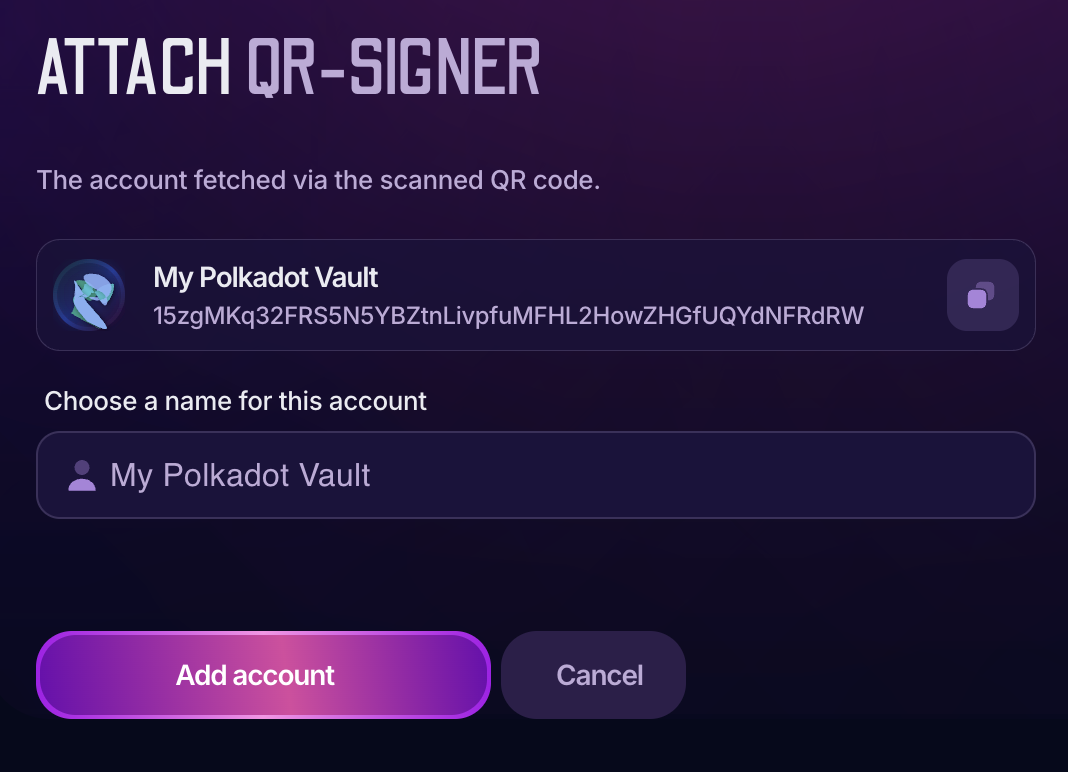
9. That's it! Your Polkadot Vault account will now appear in the list of accounts in PolkaGate.
