
PolkaGate: How to Join and Leave a Nomination Pool Print
Modified on: Thu, 29 Jan, 2026 at 4:39 PM
This article remains available for reference but is no longer updated or maintained.
Please use the information at your own discretion and risk.
For more details, refer to the official annoucenment.
PolkaGate is a Polkadot wallet developed and maintained by PolkaGate Foundation. It is an open-source browser extension available for Mozilla Firefox and Chromium-based browsers, funded by the Kusama Treasury. PolkaGate is compatible with many DApps and tools in the ecosystem.
This article guides you through joining a pool, managing your funds, and leaving the pool if you wish.
ℹ️ GOOD TO KNOW

If you have any questions about PolkaGate, or run into any issues and require further assistance, feel free to ask our AI chatbot or contact us.

Alternatively, you can contact the PolkaGate team directly and receive specialised assistance from the team that developed the wallet. You can contact PolkaGate support on Element or at polkagate@outlook.com
TABLE OF CONTENTS
- How to join a nomination pool
- How to bond more in a nomination pool
- How to unbond or leave the nomination pool
How to join a nomination pool
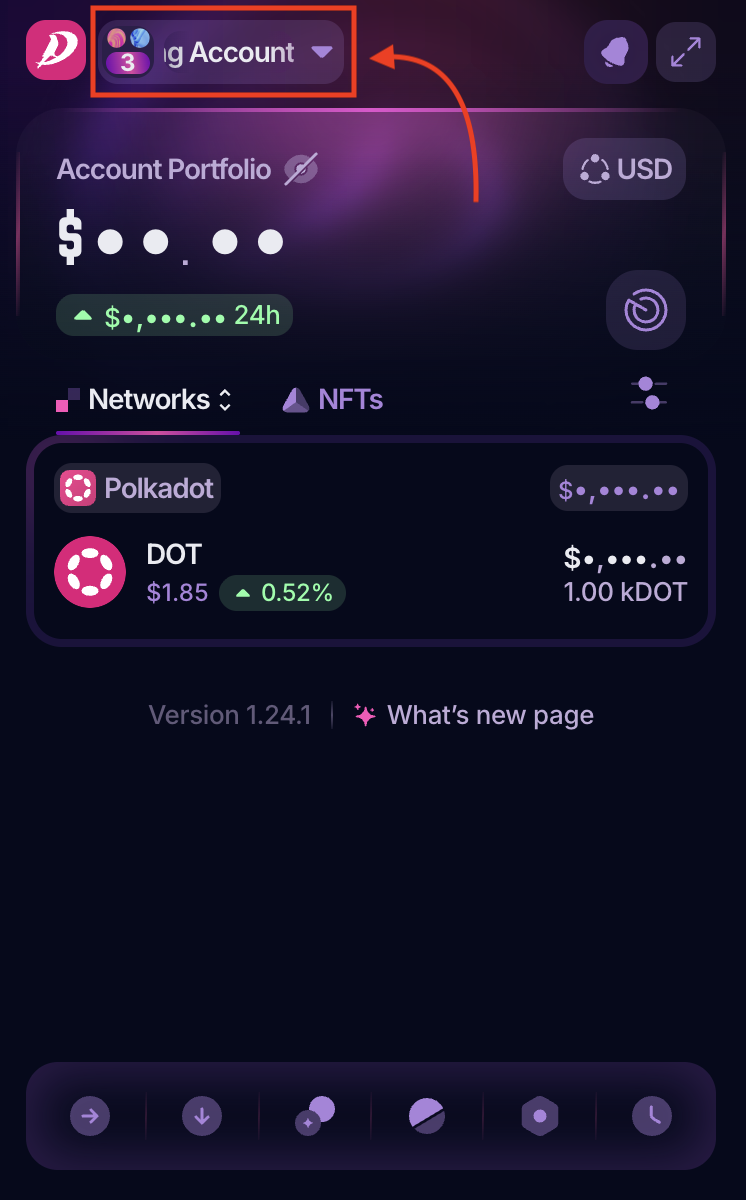
1. Open your PolkaGate extension and in the drop-down menu, select the account on which you want to stake your DOT:
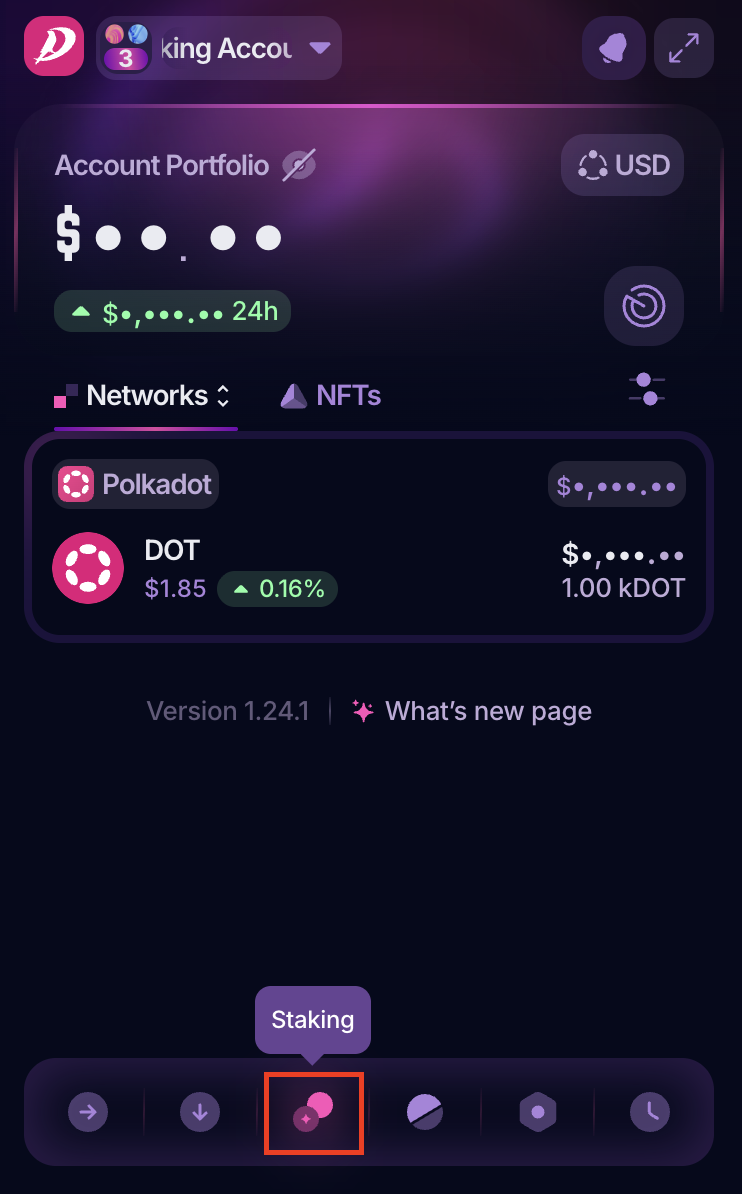
2. Once you've selected the account, click on the "Staking" button:
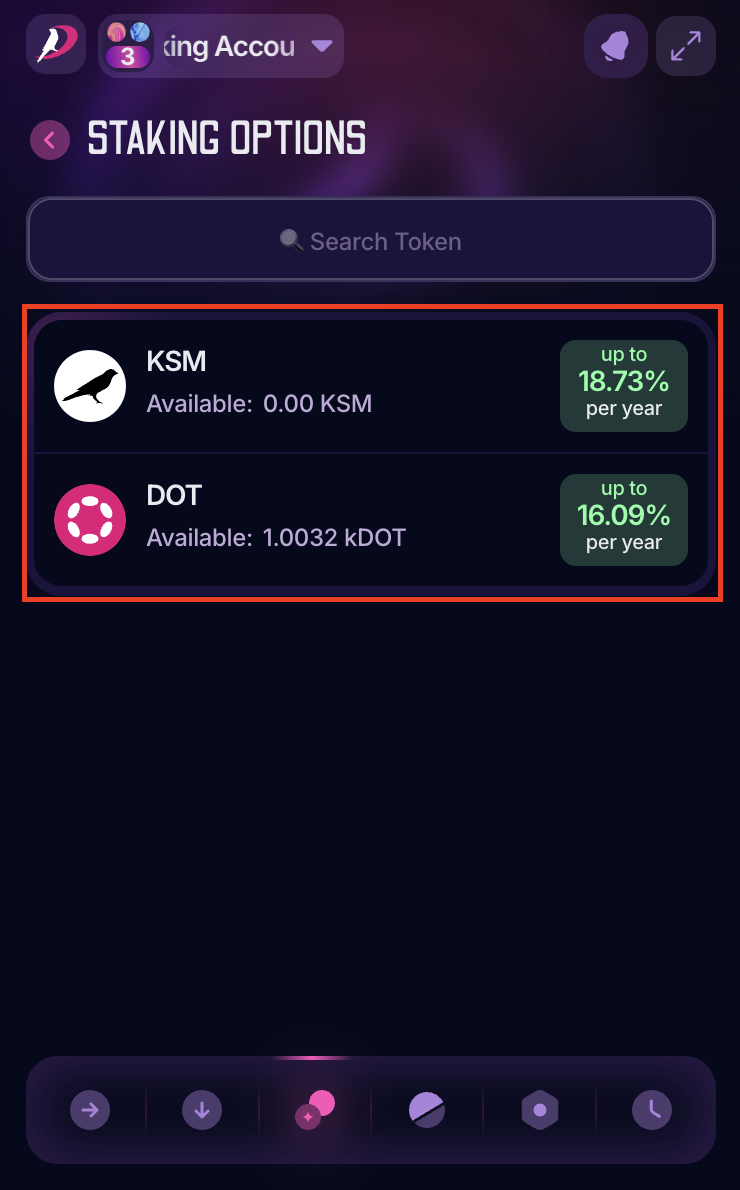
3. Select the token you want to stake. In this article, we use DOT:
ℹ️ INFO

The steps below will guide you on joining a nomination pool, but if you want to stake solo, check the article "Polkagate: How to Stake Your DOT."
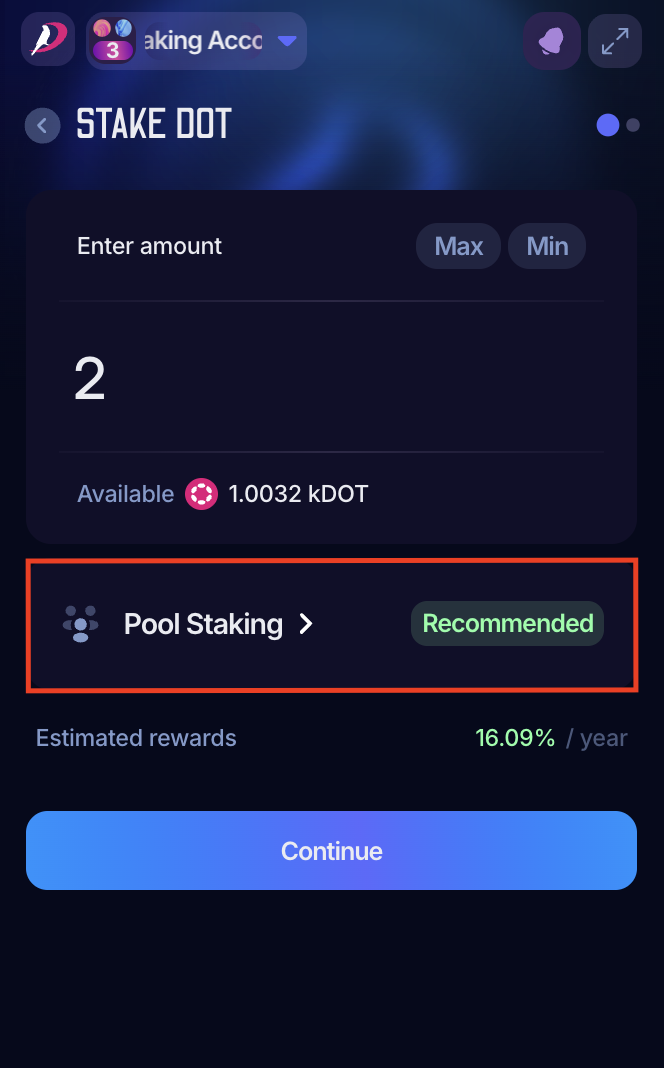
4. Enter the amount you want to stake. PolkaGate offers its pool as predefined. If you want to change it, click on "Pool Staking":
5. Now, click on the selected pool to view all the available pools:
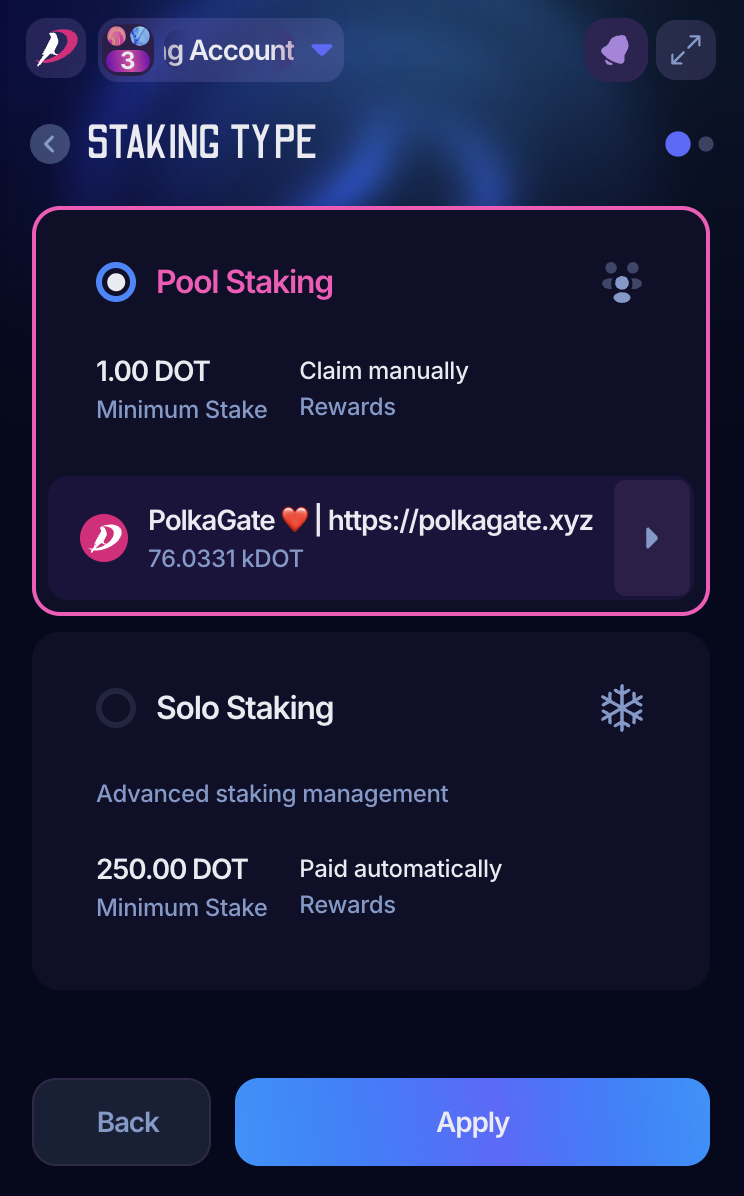
6. Choose your preferred pool from the list, and once selected, click "Next":

ℹ️ INFO

Check the following article to learn about the best practices when selecting the nomination pool you'd like to join:

How Do I Know Which Nomination Pool to Choose?
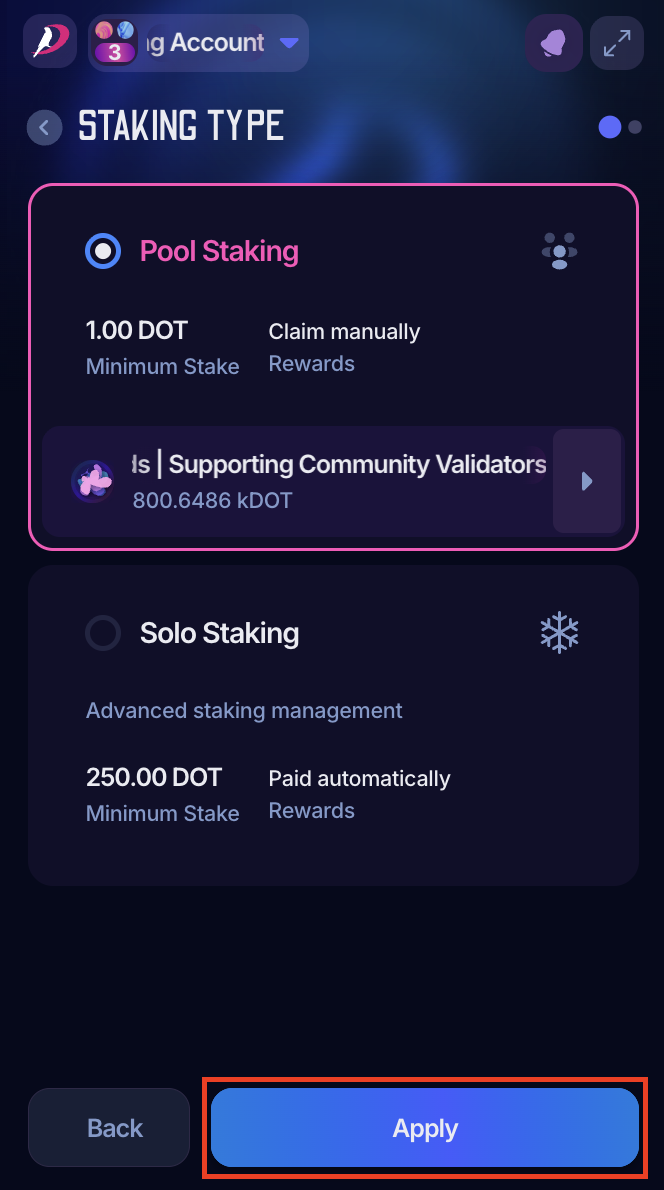
7. If you've changed the pool, you'll need to click "Apply" to approve the changes:
‼️ IMPORTANT

Choose wisely. As a pool member, you must wait for the unbonding period before switching pools: 28 days on Polkadot and 7 days on Kusama.
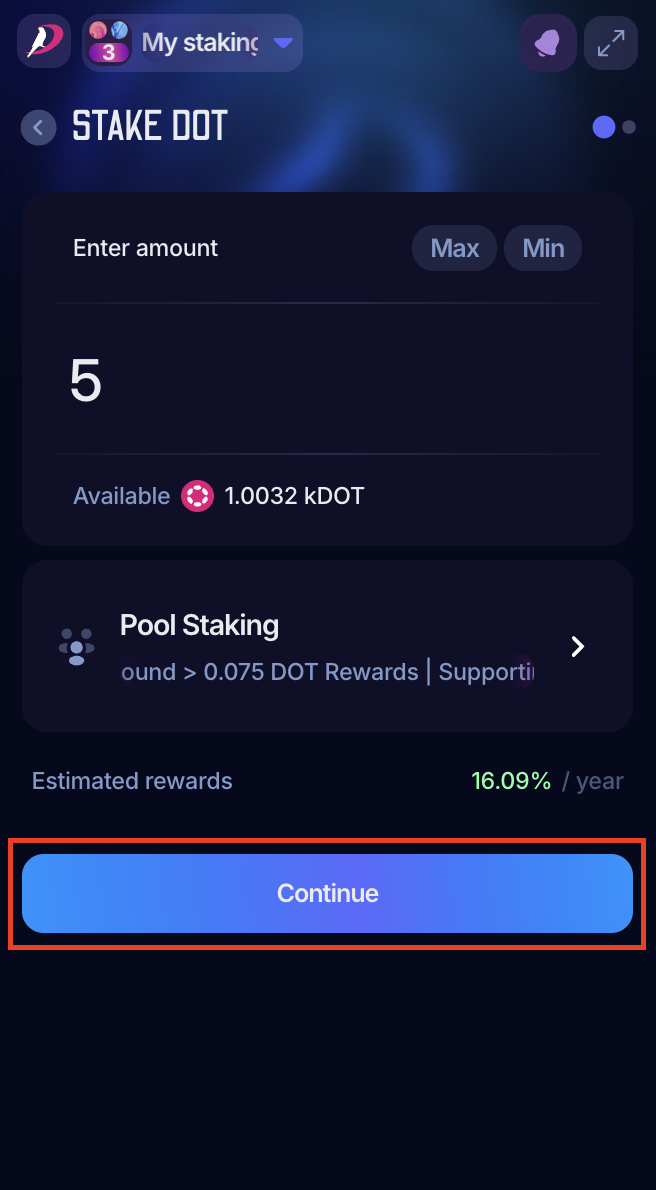
8. Once all the changes have been made, click "Continue" to see the transaction details and confirm:
How to bond more in a nomination pool
After joining a nomination pool, you can increase your stake by bonding more funds. These funds can come from your transferable balance or from the rewards earned as a pool member (compounding). The following steps will guide you through the process in either case.
1. Open your PolkaGate extension and in the drop-down menu, select the account on which you want to stake your DOT:
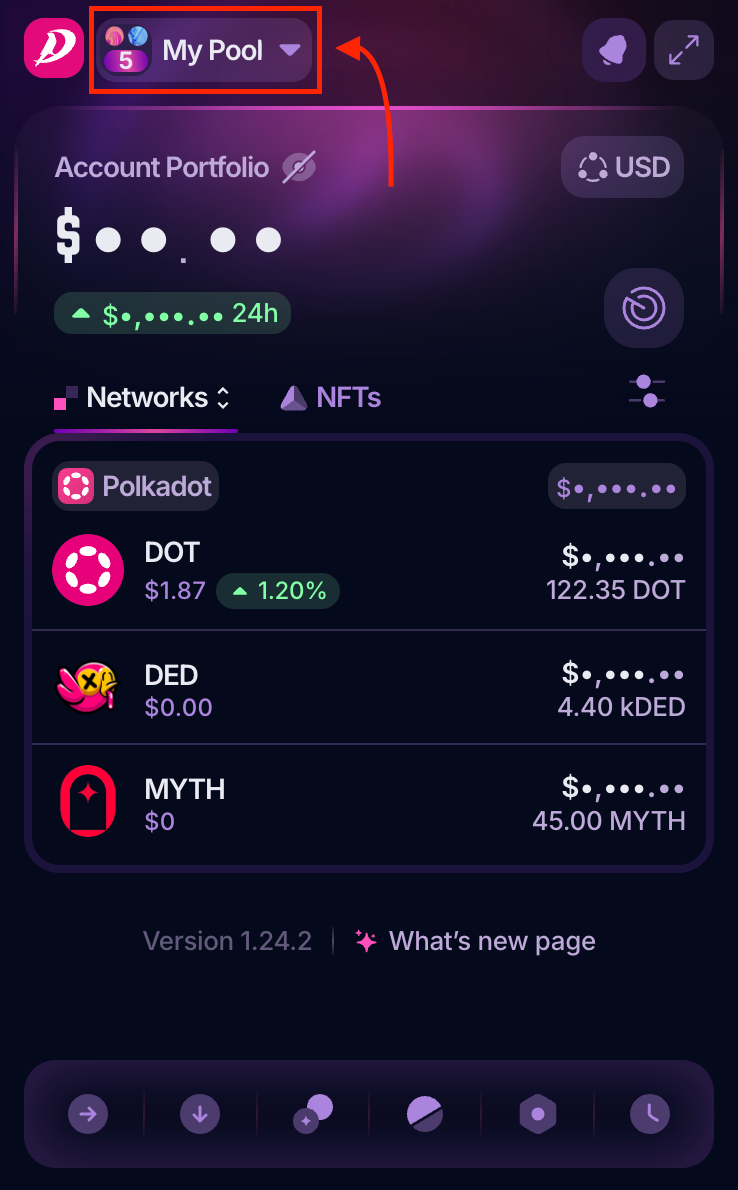
2. Once you've selected the account, click on the "Staking" button:
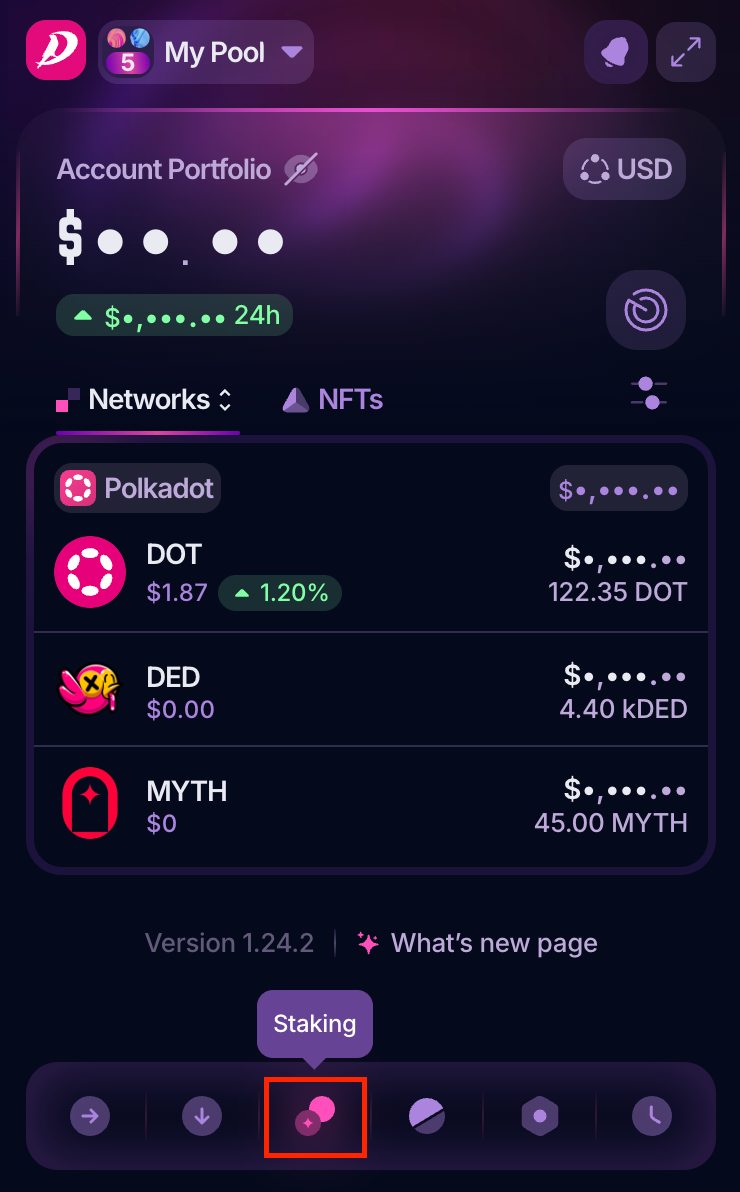
3. Now, you'll see your staking position for this account. Click on it to view additional options:
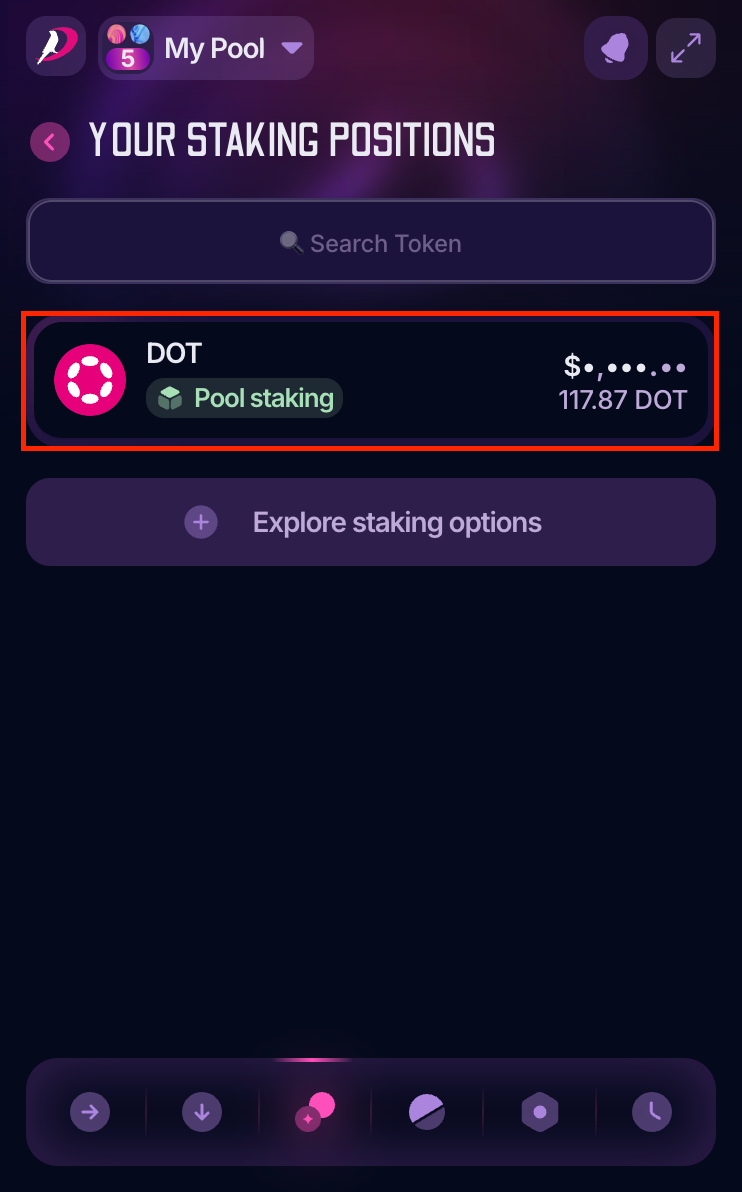
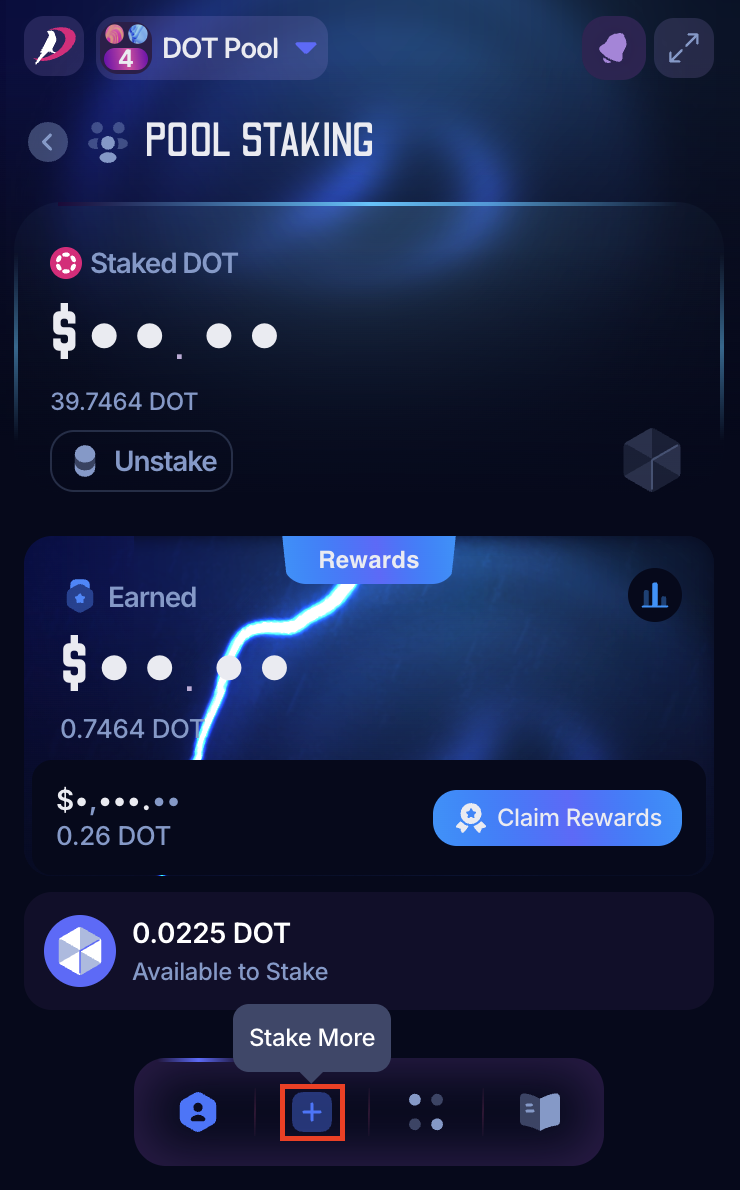
4. Click on the "Stake More" icon at the bottom of the extension:
ℹ️ GOOD TO KNOW

Any unclaimed rewards will be claimed automatically once you bond more funds.
5. Enter the amount you want to bond, click "Next," and review and approve the extrinsic:
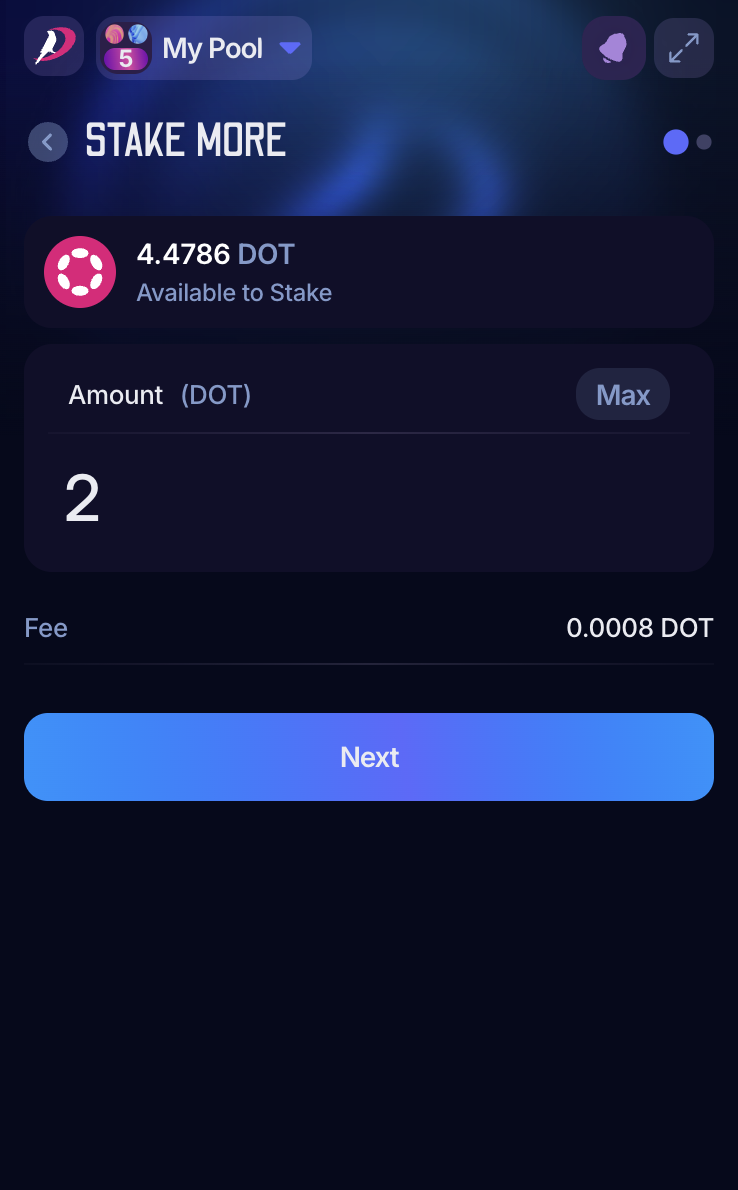
That's it! The new bonded balance will be added to your staked amount in the next era.
How to unbond or leave the nomination pool
After joining a nomination pool, you can initiate the unbonding of your funds at any time. If you unbond the full amount, you'll effectively leave the pool. Once you leave, the bonded funds will be released to your transferable balance after the unbonding period ends, and you withdraw them.
The following steps explain how to unbond part of your funds or completely leave the nomination pool.
ℹ️ GOOD TO KNOW

It takes 7 days (28 eras) to unbond on Kusama, 28 days (28 eras) on Polkadot, and 12 hours (2 eras) on Westend.
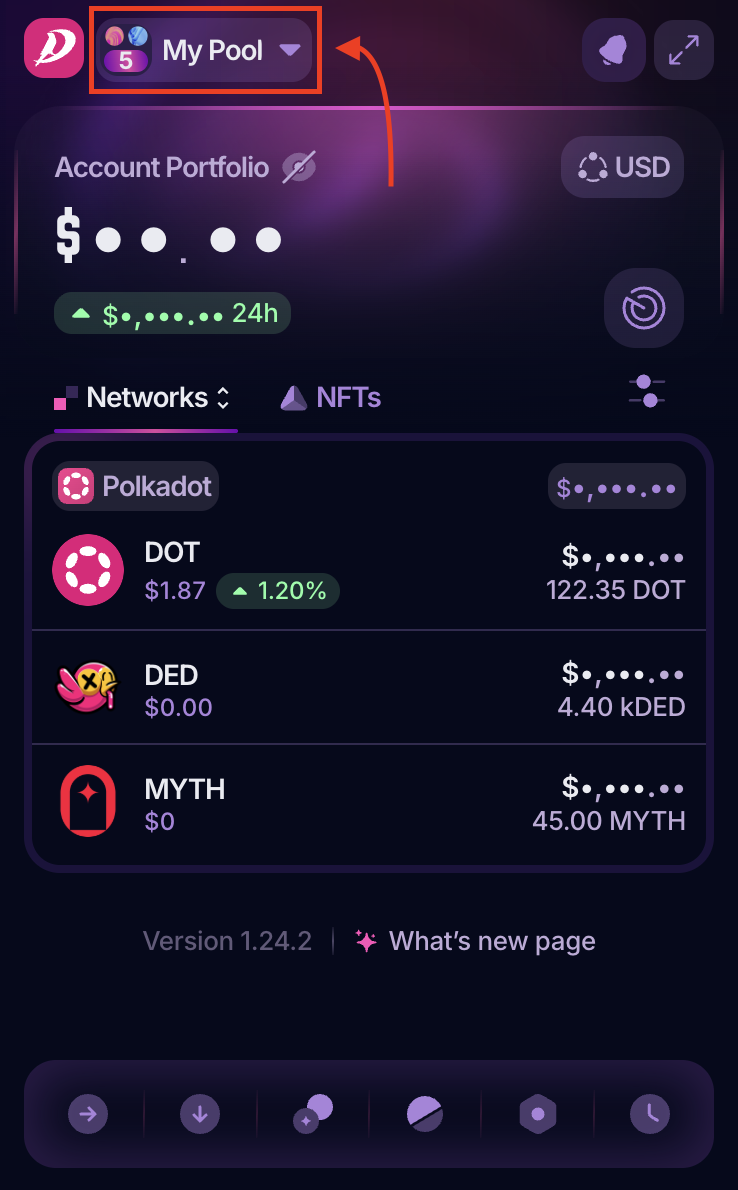
1. Open your PolkaGate extension and in the drop-down menu, select the account on which you want to stake your DOT:
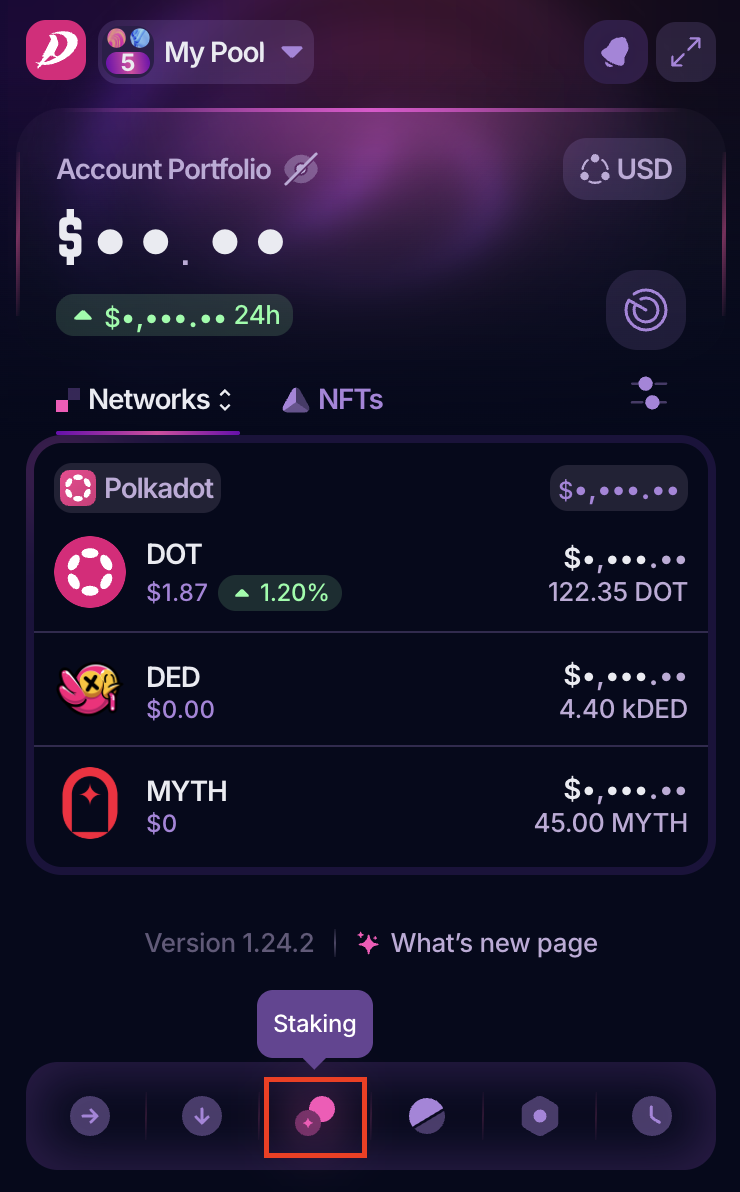
2. Once you've selected the account, click on the "Staking" button:
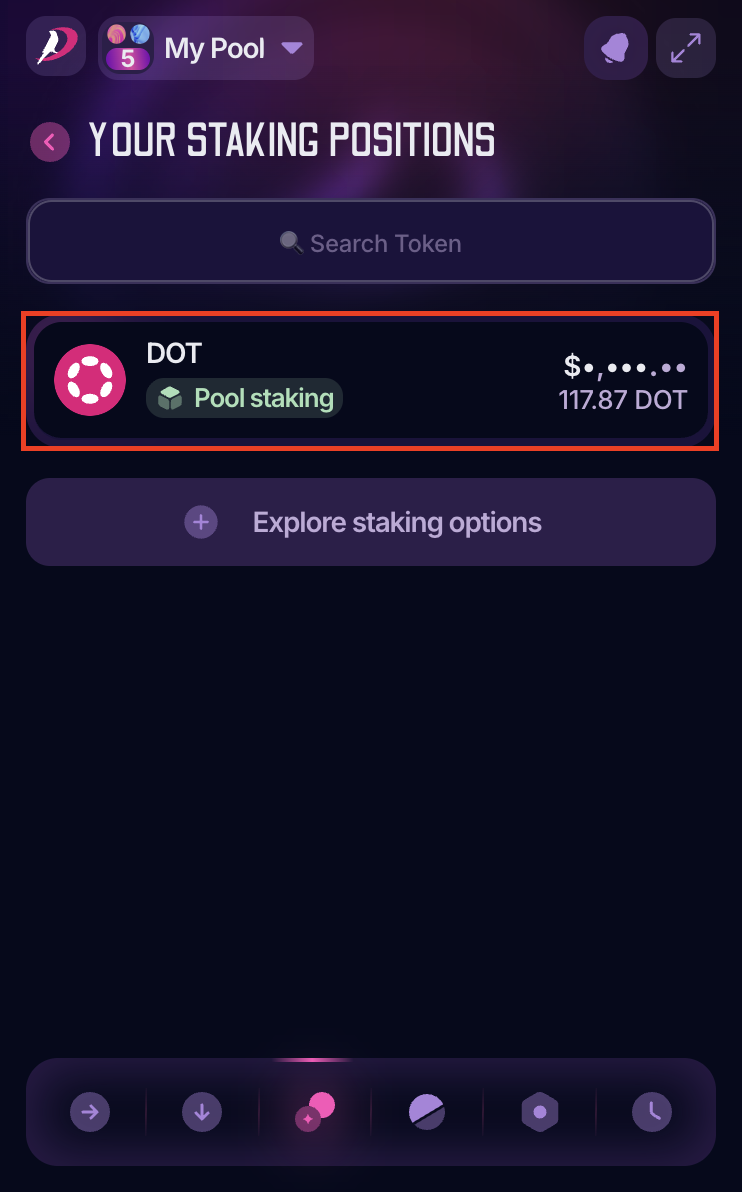
3. Now, you'll see your staking position for this account. Click on it to view additional options:
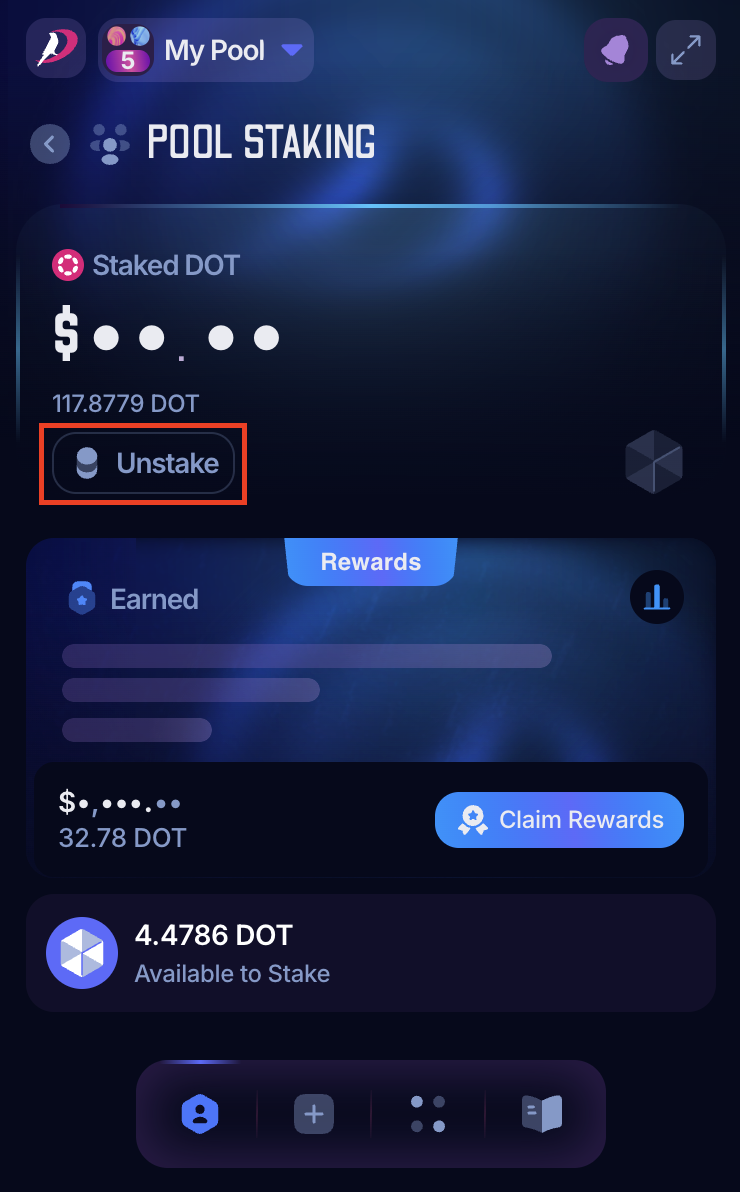
4. Now, you can see your pool status. Click "Unstake" to begin the unstaking process:
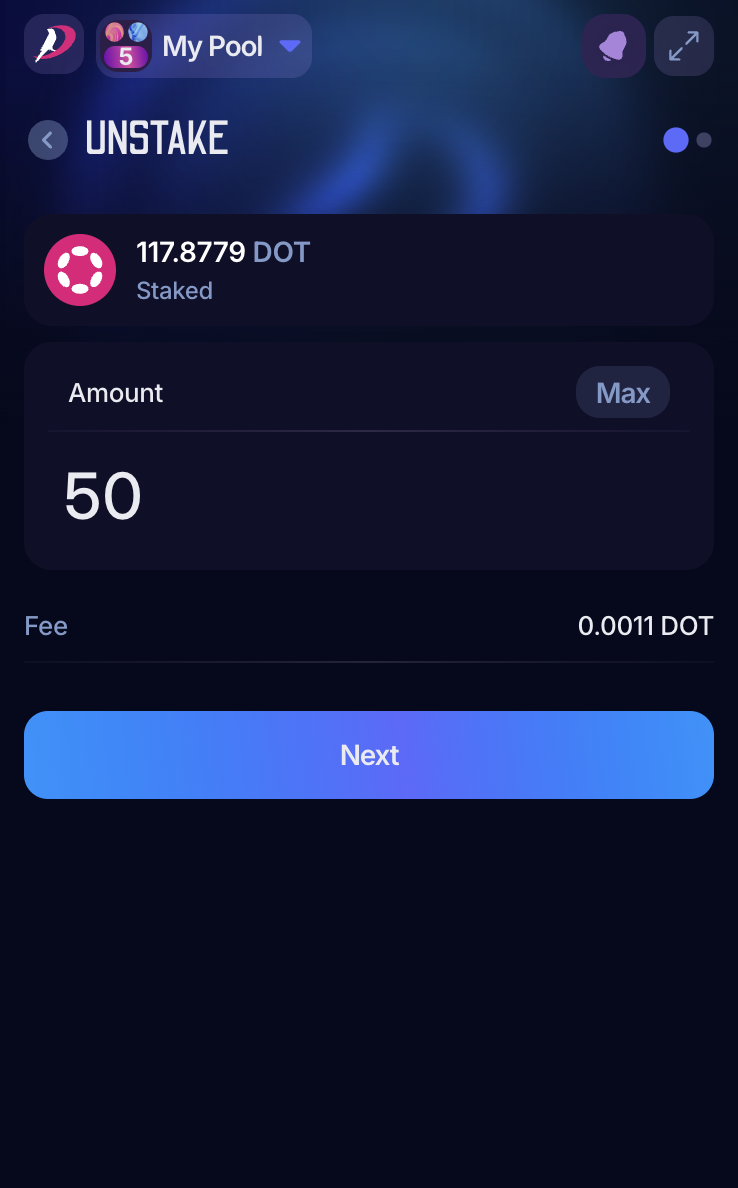
5. Enter the amount you want to unstake, or click "Max" if you want to unstake the full amount. Click "Next," and review and approve the extrinsic:
6. After the unbonding period ends, navigate to the Staking tab again, select Polkadot, and click "Unstaking" to withdraw your unbonded funds. Confirm the transaction to make your funds transferable again.
